


We are delighted to hear about your enthusiasm for our upcoming release and are excited to share it with you. Rest assured, the wait will be rewarding. Our dedicated team has devoted countless hours to perfecting this new version, ensuring that it exceeds your expectations. Prepare to be amazed by the significantly improved functionality, performance, and user experience.
While the software is still in the final stages of development, we are almost ready to bring you a product filled with innovative features that will surely enhance your experience. Additionally, this release will introduce fundamental features of a next-generation firewall, marking a significant step forward in our technology. Stay tuned for the imminent arrival of our most advanced and user-friendly version yet!
The upcoming release of Zenarmor 1.16, with its advanced features like Device Identification, Device Access Control, and Community ID flow hashing, promises to elevate network security; however, to leverage these enhancements fully and mitigate potential misconfiguration issues, this guide outlines essential best practices for administrators to effectively implement and optimize the new configuration settings.
From policy configuration simplicity to device examination and security rule enforcement, these practices cover essential aspects. Additionally, insights into IoT device protection, virtual environment considerations, and efficient reporting strategies are outlined. The guide concludes with recommendations for seamless integration with packet-filtering firewalls, VPN security enhancements, and the advantages of cloud-based management.
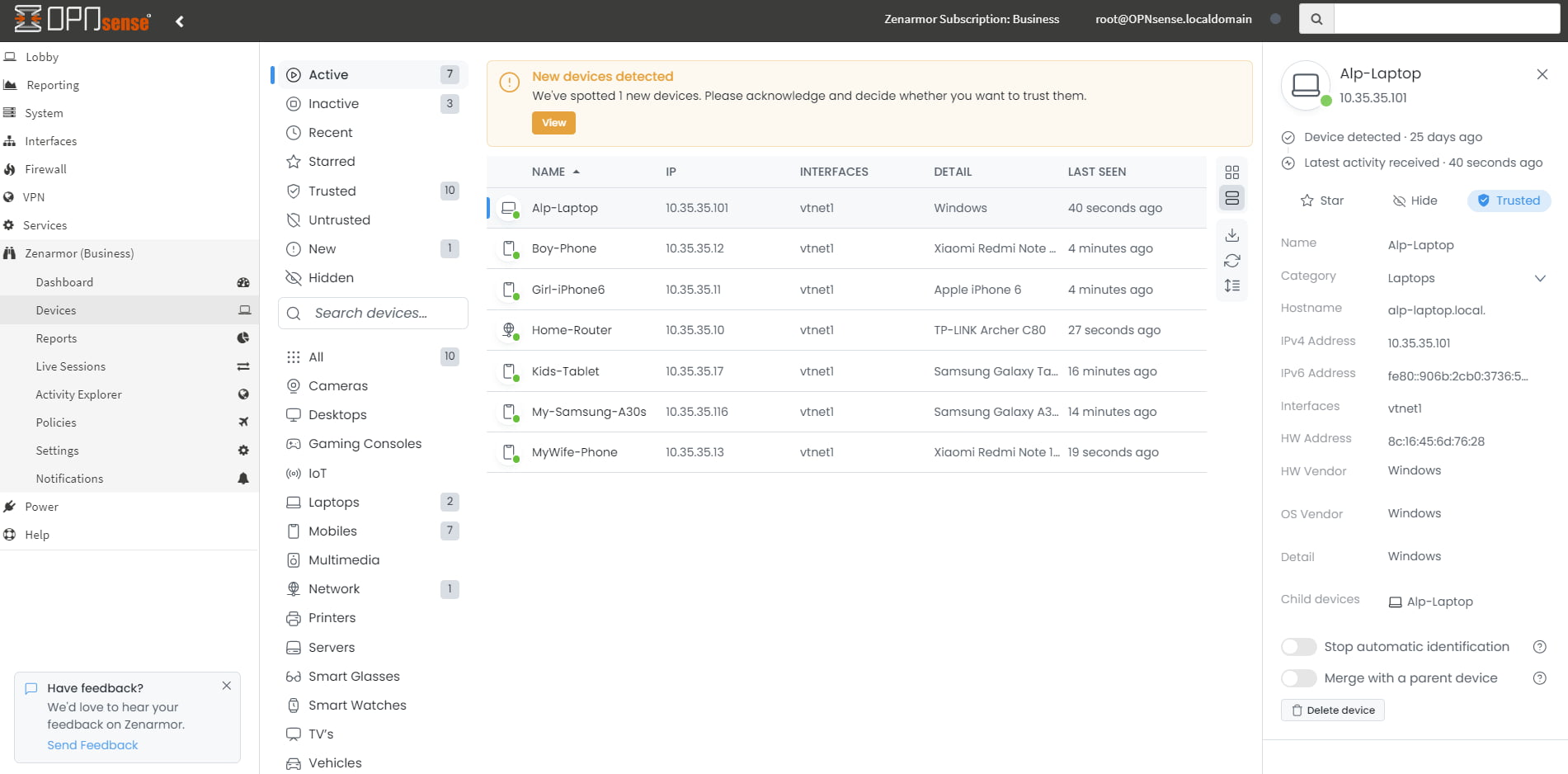
Figure 1. Zenarmor 1.16 Devices
To aid you in maximizing the capabilities of the Zenarmor next-generation firewall and averting misconfiguration complications, we establish best practice principles for Zenarmor configuration:
-
Using minimal criteria: Define your policy configuration as simply as possible. When multiple criteria are specified for a policy, it is applied exclusively to network packets that satisfy each of the specified criteria.
Please note that the ‘AND’ logical operator is used to evaluate all policy criteria in Policy Configuration, not the ‘OR’ logical operator. So, for a particular type of traffic to match a specific policy, all criteria must be met. For instance, if you’ve created a policy and specified VLAN ID, IP, and username criteria, a session must match all of those. The only exceptions to this rule are Devices and MAC addresses, where they can be used interchangeably.
-
For example, in the case where a policy configuration specifies the “Mobiles” device category and the 10.0.0.0/24 network, these should all be identical. Upon observing a transmission originating from the “Mobiles” device with the IP address 10.11.11.11, this flow will fail to comply with the specified policy.
-
As another example, adding a detected device, CEO_laptop, and a user, CEO, to the policy named CEO_Rules would ensure that the policy would only be triggered when a user whose login identity is CEO utilized the CEO_laptop to connect to the network. When another user account utilizes this device to connect to the network, the CEO_Rules policy is not implemented on its network traffic.
-
-
Device Examination: Once Zenarmor 1.16 has been installed on your firewall, proceed to examine devices on your network by navigating to the Zenarmor Devices page, and then verify them as trusted. Zenarmor defines all newly detected devices as untrusted by default. Suspicious or unknown devices should be left untrusted.
-
Give Zenarmor some time and a chance for more accurate device identification: It should be noted that this is the initial iteration of the Zenarmor Device Identification function. Although it demonstrates exceptional capability in identifying the majority of devices connected to your network, certain instances may arise where minor inconsistencies or inaccurate data are detected, necessitating manual user intervention for correction and input. This is because, when examining network traffic in the absence of a complete TLS inspection, only incomplete device information is obtained. The good news is that a full TLS inspection will be available with Zenarmor 1.17, which is scheduled for release in the first quarter of 2024. This enhancement will not only improve device identification but also the network inspection capabilities of Zenarmor in its entirety.
The more network packets inspected and the more information they provide, the more accurate device identification. Device identification is an ongoing process until you stop it intentionally. Zenarmor continuously examines network flow to find detailed information about devices and to catch updates on them. To ensure that all devices are accurately displayed on your Zenarmor interface, allow Zenarmor some time and opportunity to detect them. -
Default Policy Configuration: Although the “Default” policy configuration is mostly static and you can configure a limited set of parameters depending on your subscription, it is advised to enable the “Block Untrusted Devices” option in this policy. This will prevent rogue devices from accessing your network for harmful activities.
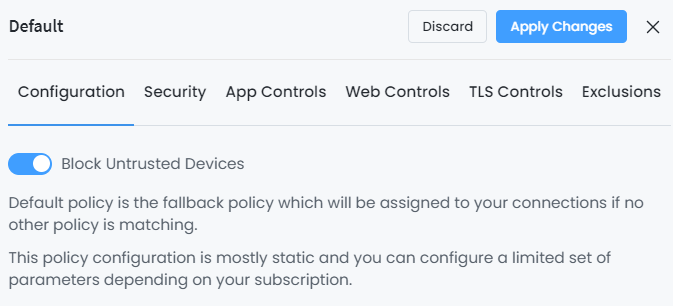
Figure 2. Block Untrusted Devices in Default Policy
-
Block Untrusted Devices: It is recommended to enable Block Untrusted Devices on policies whose criteria match a broad range of endpoints, such as networks and VLANs, to prevent unauthorized access to your network by unknown devices.
-
Descriptive Naming for Static IPs: For a static IP address definition in DHCP configuration, it is better to type a descriptive name for the device. Zenarmor automatically detects and displays the name of a device. Such a device name is displayed in device details and reports. This will enhance the visibility of your network, facilitating more effective threat monitoring.
-
MAC Address Criteria in Policies: There is no requirement to include MAC address criteria for Device- or Device Category-based policies. Caution is advised, as this particular policy applies solely to devices whose MAC addresses are explicitly specified within the policy. Inaccurate policy configuration due to improperly designed policies results in unforeseen packet filtering and package mismatching.
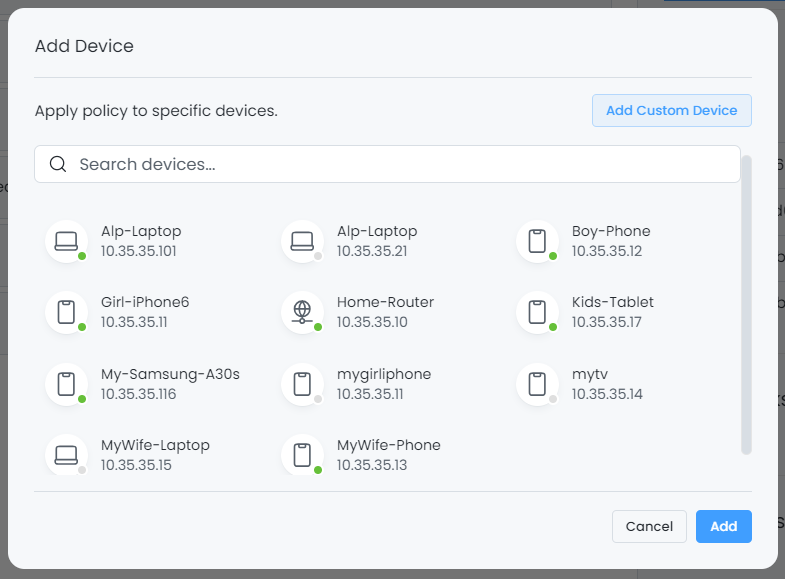
Figure 3. Adding Device in Policy
-
Enable Essential and Advanced Security Rules: To safeguard your IT resources from potential malicious connections and prevent any suspicious network activities, it’s recommended to enable all Essential and Advanced Security Rules by selecting the High Control option in the upper right corner of the Security Rules page. In case you encounter false positive issues, you can effectively resolve them by creating exclusions through Live Sessions Explorers.
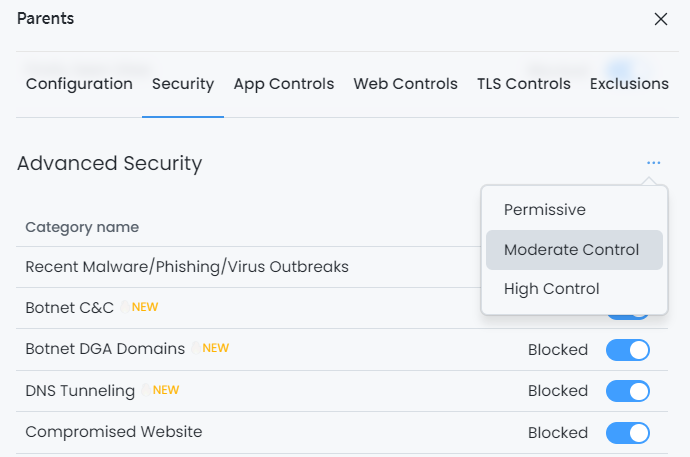
Figure 4. Enabling Predefined Security Profiles
-
Be Careful with Whitelisting: Beware that exclusions take precedence over all your Security, Application Control, and Web Control rules. Particularly when adding a whitelist to a security category, exercise caution, as an erroneous definition could compromise your network.
-
Device Categorization and Policy Creation: From the policy configuration page, you can select device categories such as IoT, Multimedia, Smart Glasses/Watches, TVs, Gaming Consoles, and Vehicles to create a policy and safeguard your IoT devices. Note that while Zenarmor’s device identification feature will automatically recognize most of your IoT devices, it may not identify all of them. In such cases, you might need to manually identify the rest of your devices to ensure comprehensive protection.
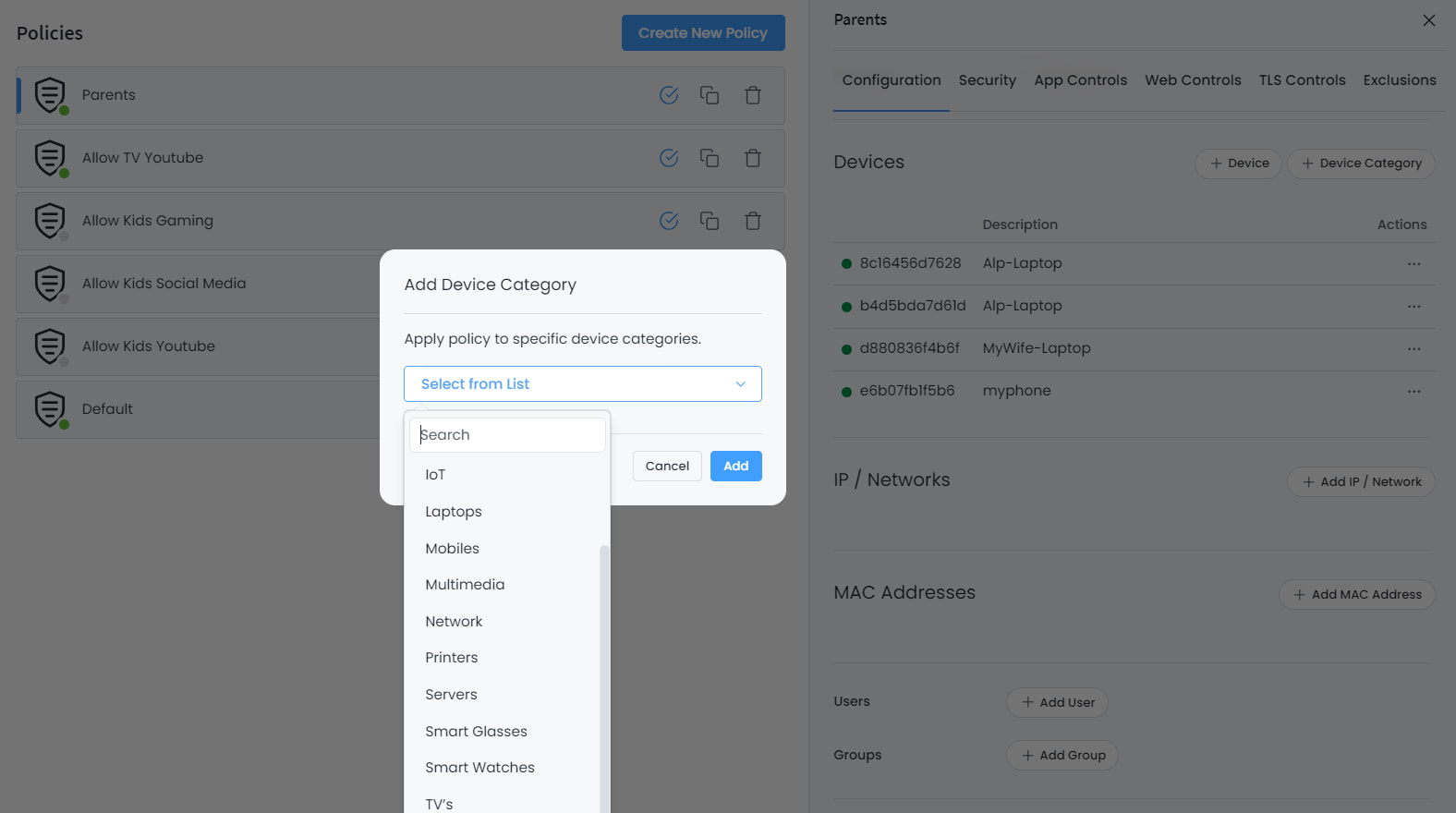
Figure 5. Adding Device Category in Policy
-
Network Segmentation for IoT Devices: By separating your IoT devices from valuable IT assets using separate VLANs/networks and subsequently activating the Exempted VLANs & Networks option, you can prevent your devices from exceeding the device limitations specified in your purchased license. Exempted VLANs and Network addresses are circumvented by Zenarmor processing. There will also be no activity reported for these devices in the reports.
-
Updating Device Details: You can manually update automatically detected device details, such as name and device category. User-defined settings have higher priority than the settings automatically detected by Zenarmor. For instance, when a user changes the detected name or category of a device, Zenarmor device database is updated, and detected values are ignored. Values set by the user manually are displayed.
-
Drill-down: For streamlined data analysis, like you used to on the previous Zenarmor UI, you can now access the Live Session Explorer with a single click on the chart pies or by selecting the pie names followed by the ellipsis icon to delve down to traffic details.
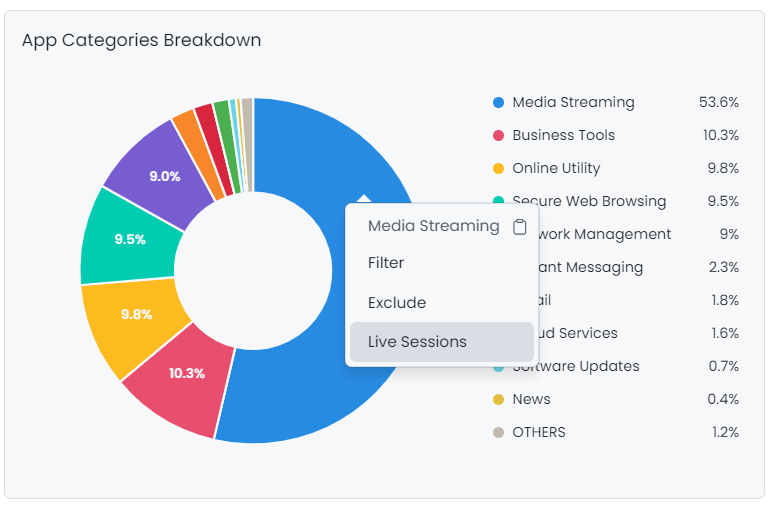
Figure 6. Drill-down
-
Considerations for Virtual Environments: Since resources in virtual environments are typically shared among guest systems, we do not advise deploying Zenarmor as a virtual guest if the sustained WAN bandwidth exceeds 500 Mbps and the number of active devices exceeds 500.
-
Optimal Reporting Database Selection: Select the best reporting database option that meets your needs. Elasticsearch appears to be a superior backend database option for large enterprise networks with hundreds of devices. A minimum of 8GB of RAM is required to operate ES in conjunction with Zenarmor. Additionally, you may transfer your data to a remote Elasticsearch database. In the case of residential networks or tiny networks, SQLite can adequately facilitate efficient reporting. SSD drives are suggested for optimal reporting performance.
-
Policy Processing Order: Zenarmor policies are processed in order, beginning from top to bottom. The most frequently matching rule should be placed at the top of the rule list for better performance, reducing unnecessary processing.
-
Enable Community ID Flow Hashing: Enable Community ID flow hashing to easily correlate network security events generated by other security tools on your network, like Suricata and Snort. This correlation provides a more comprehensive view of network activities and aids in the identification and response to potential threats. Enabling Community ID flow hashing ensures a synchronized and unified approach to network security across different tools, contributing to a more robust defense against various cyber threats.
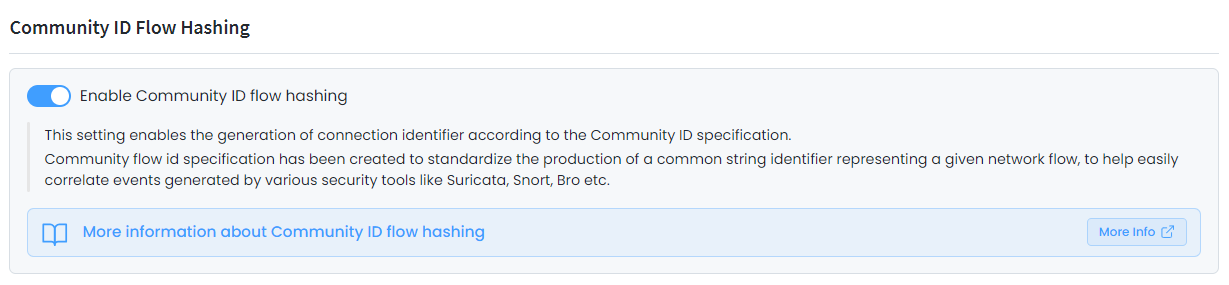
Figure 7. Enabling Community ID Flow Hashing in Policy
-
Stream Reporting Data to Syslog or SIEM: Enable “stream reporting data” to your Syslog server or SIEM tool, such as Wazuh, Splunk, or Datadog, for unified security and powerful monitoring.
This capability ensures unified security across your network and empowers you with powerful monitoring capabilities. By seamlessly integrating reporting data into your chosen Syslog or SIEM solution, you gain valuable insights, enhance threat detection, and streamline the management of security events. This proactive approach contributes to a more resilient and responsive security infrastructure.
-
Configure Reporting Data Period: Configure the reporting data period in accordance with the hardware specifications and reporting database of your choice. Zenarmor includes the optimal reporting data period for your database type by default.
-
Efficient Real-time Network Activity Management: By utilizing the Actions icon while examining real-time network activities in Live Session Explorer, one can efficiently permit or prohibit connections according to various criteria such as hostname, application, application category, web category, or security category.
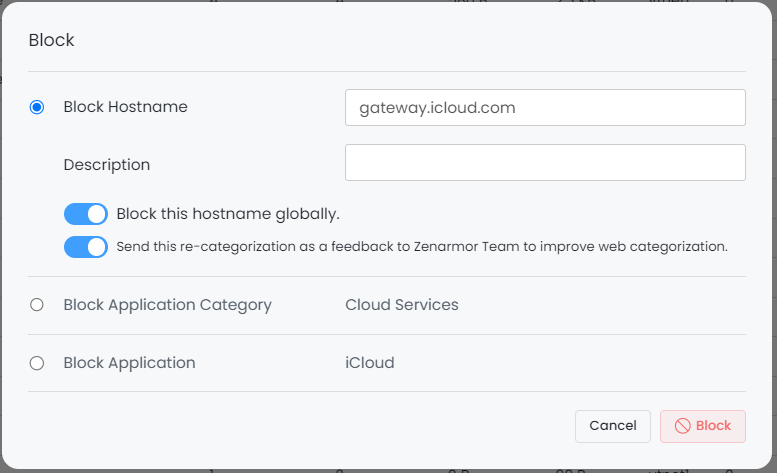
Figure 8. Blocking a connection via Live Session Explorer
-
Operational Independence: It should be noted that the principles of Zenarmor and a packet-filtering firewall operate independently of one another. Initially, incoming packets are processed by the Zenarmor engine. If the engine permits them to pass, they are then processed by the L4 firewall platform, such as pfSense or OPNsense, on which Zenarmor is operating. Outgoing packets, conversely, are initially processed by your L4 firewall. When the packet-filtering firewall grants access to the outgoing packets, the Zenarmor engine proceeds to analyze them. In order to be permitted through, a network communication must not violate any rule specified on either the L4 firewall or Zenarmor.
It is advisable to independently configure Zenarmor to enable L7 filtering and configure your firewall for L4 filtering.
-
NIC Compatibility: We recommend using Intel adapters, as they are known to have good compatibility with Netmap. Try to utilize emulated network driver mode with Zenarmor for Ethernet interfaces that are incompatible with Netmap. This should help you overcome the compatibility issues and ensure a smooth experience. The emulated mode has been enhanced to deliver superior performance.
-
VPN Security Enhancement: Deploy tap interfaces in your OpenVPN implementation for packet inspection and safeguarding the VPN clients against malicious traffic.
-
Cloud-Based Management: Register your node to the Zenconsole and enable the cloud management portal to administer all of your firewalls from the cloud and through a single pane of glass. Sharing firewall administration and establishing centralized, location-independent policies is incredibly beneficial, particularly for MSSPs and enterprises with multiple Zenarmor deployments.